

Live News guide
Live News shows financial headlines as they arrive, newest first. It helps you answer "What's coming out right now, and what should I read first?" with importance, breaking and market filters, search and news summaries. You can read and search news without logging in.
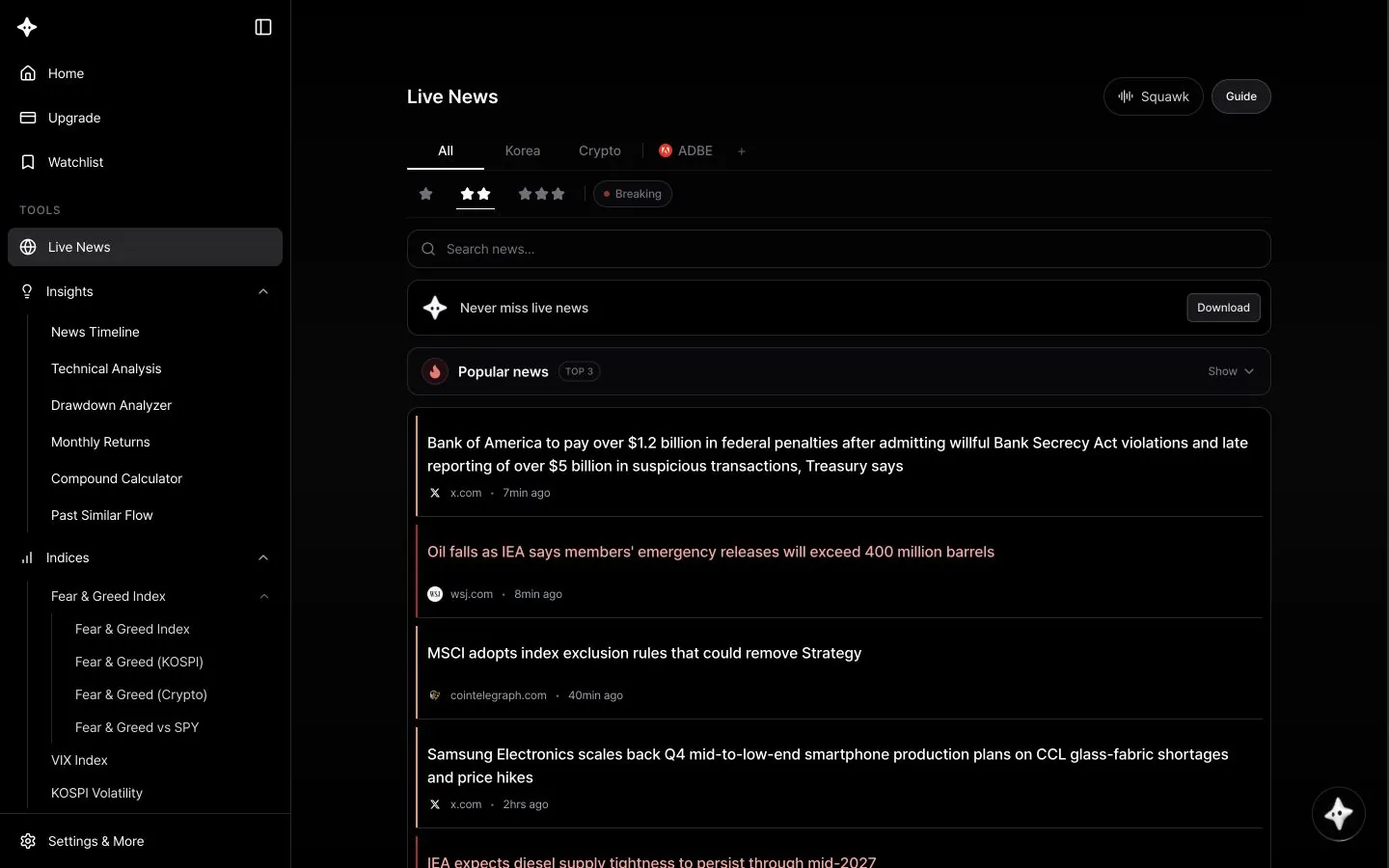
Screen layout
- To the right of the Live News heading are the Squawk and Guide buttons. Squawk reads out key news as an audio briefing.
- Category row: All (default), Korea and Crypto. When you're logged in and have stocks in your watchlist, they follow as tabs, and the + button lets you manage your watchlist.
- Filters: the one-, two- and three-star buttons set the importance level (one star by default), and Breaking shows breaking news only.
- Search box Search news...: type a query and press Enter to apply it. The X button clears the search.
- Popular news (TOP 3): collapsed by default; click Show to see the three most-opened stories. It's hidden while a search is active.
- News feed: each item shows the headline (up to two lines), the source domain and how long ago it was published (for example, 5min ago). Scroll down to keep loading older stories.
How to use it
- Choose All, Korea, Crypto or one of your watchlist stocks.
- Set the importance level with the star buttons. Choose two or three stars to see only bigger stories.
- Turn on Breaking to follow urgent news only.
- To find a topic, type in Search news... and press Enter. The search combines with the selected category, importance and breaking filters.
- Click a story to open its menu, then choose News Summary, AI Research, Original News or Share.
While the page is open, new stories are added to the top of the feed periodically. There's no separate refresh button.
How to read it
Stars set a minimum importance. Each story has an importance score from 0 to 10, and the star buttons show only stories at or above a level.
| Button | Stories shown |
|---|---|
| ★ | Importance 3+ (4+ for Crypto) |
| ★★ | Importance 6+ |
| ★★★ | Importance 7+ |
Colors in the feed show importance. The score itself isn't displayed: a score of 6 gets an orange left border, 7–8 a red border and red headline, and 9+ a stronger red border with a bold red headline. Breaking shows only stories flagged as breaking, regardless of importance.
The story menu
- News Summary: appears for stories with a prepared summary.
- AI Research: appears for headline-only stories without a summary and starts a new chat analyzing the story. These stories also show the note "Headline news — may not be fact-checked."
- Original News: opens the original article in a new tab. It doesn't appear for news written by Byul.
- Share: shares or copies a link to the story.
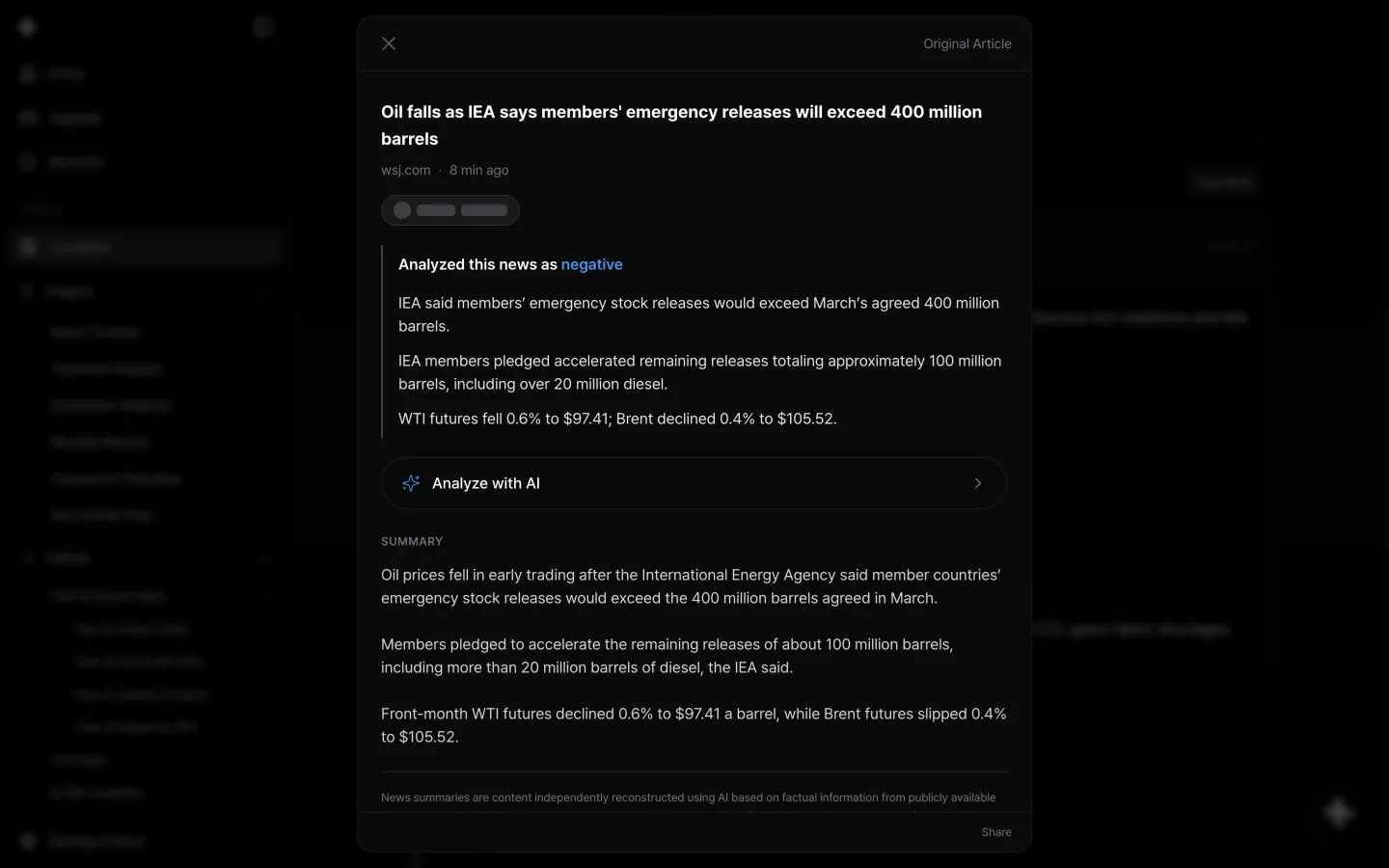
The news summary first shows the headline, source and time, related stocks with their price change, a verdict such as "Analyzed this news as positive/negative/neutral," and key points. Below that come the Analyze with AI button and the SUMMARY text. Use Original Article at the top right to open the source, and Share at the bottom to share a link.
Tips
- Before the market opens, skim three-star stories first so you don't miss the big ones, then widen to one star when you have time.
- When markets are moving fast, keep Breaking on to follow only urgent news.
- Use your watchlist tabs to collect news for the stocks you own or follow.
- Check the positive/negative verdict in the summary first, then read the Original Article for anything important.
- If you can't watch the screen, turn on Squawk to listen to key news and select a caption to open that story. See Introducing Squawk for details.
Use with AI Research
Choose AI Research in the story menu or Analyze with AI in the summary to start a new chat analyzing that story, then keep asking follow-up questions.
- "Summarize how this news could affect the stock"
- "Is there an opposing view on this?"
- "Summarize only the important news about this stock from the past week"
Learn more about AI Research for Live News
Good to know
- Reading, searching, filtering and Squawk work without logging in. Watchlist tabs, News Summary and AI Research require login.
- On the free plan, each time you open a News Summary uses 1 credit (except news written by Byul). If you don't have enough credits, you're taken to the pricing page. Reopening the same story uses a credit again.
- Search may not apply inside watchlist stock tabs. Use search on the All, Korea or Crypto tabs.
- Search results are sorted newest first, not by relevance.
- Squawk briefs key news regardless of your category, importance, breaking or search settings.
- Importance scores, positive/negative verdicts and summaries are for reference only and are not investment advice. Check the original article before making important decisions.